
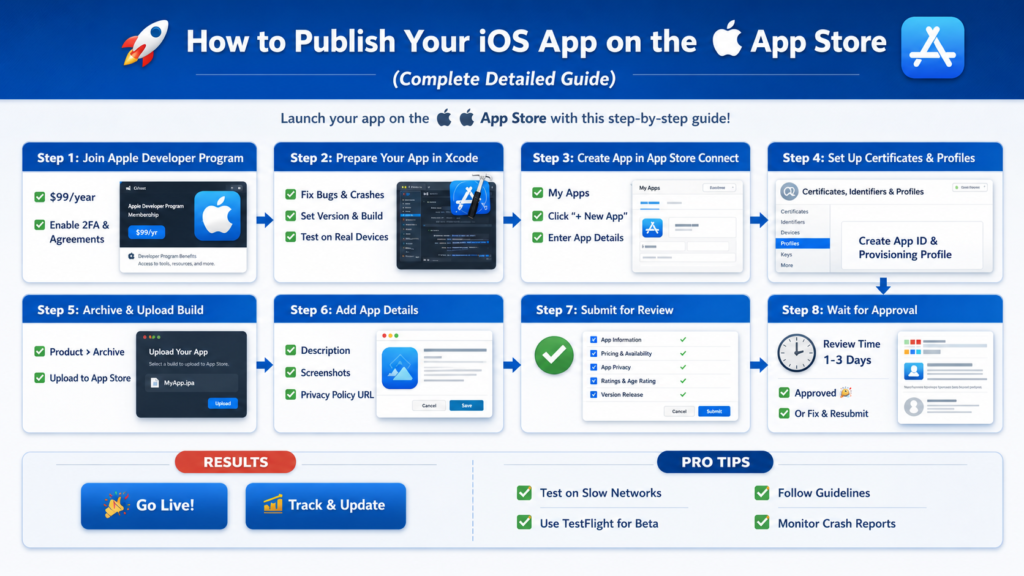
Launching your app on the Apple App Store is about uploading a build, it’s a structured, multi-step process involving development, configuration, testing, compliance, and optimization.
Each step plays a critical role in making sure your app meets Apple’s quality standards and gets approved without delays. This guide explains every step in detail so you can confidently publish your app.
Understanding the App Store Ecosystem
Before publishing your app, you must understand the three core components of Apple’s ecosystem and how they work together:
- Xcode – This is Apple’s official development environment where you write code, design UI, test your app, and finally create a build (archive) ready for submission.
- App Store Connect – This is a web-based dashboard where you manage your app listing, upload builds, configure pricing, add metadata, and submit your app for review.
- Certificates, Identifiers & Profiles – These are security components used to verify your identity as a developer and ensure that your app is safe, authentic, and authorized to run on Apple devices.
Together, these systems make sure secure app distribution and prevent unauthorized or malicious apps from being published.
Steps to Publish Your App on App Store
Step 1: Apple Developer Account Setup
Join the Apple Developer Program
To publish an app, you must enroll in Apple’s paid developer program.
Account Types:
- Individual Account – Suitable for freelancers or solo developers. Your personal name appears as the app publisher.
- Organization Account – Best for companies. Requires a D-U-N-S number and allows your company name to appear on the App Store.
Important Setup Steps:
- Enable 2-Factor Authentication – This adds a layer of security to your Apple ID and is mandatory.
- Add Banking & Tax Information – Required if you plan to sell apps or offer in-app purchases.
- Accept Legal Agreements – Apple requires you to accept terms and conditions before allowing app submission.
If agreements are not accepted, you will not be able to upload or submit your app.
Step 2: App Preparation (Production Level)
Before submitting your app, it must be production-ready.
Code Quality Checklist:
Remove:
- Debug logs like
print()orconsole.log()they clutter logs and may expose internal logic. - Test or staging APIs that are not meant for real users.
Handle Properly:
- API failures (e.g., server down scenarios)
- No internet connection cases
- Edge cases such as empty data, slow responses, or unexpected user inputs
Performance Optimization:
- Compress images to reduce app size and improve loading speed
- Optimize launch time by minimizing heavy operations during startup
- Avoid running intensive tasks on the main thread, as it can freeze the UI
Security Best Practices:
- Always use HTTPS for secure data transmission
- Store sensitive data like tokens securely in Keychain
- Never hardcode secrets like API keys inside the app
Step 3: App Metadata Planning
Metadata determines how your app appears on the App Store and directly impacts downloads.
Required Content:
- App Name – Maximum 30 characters; should be unique and descriptive
- Subtitle – A short tagline explaining your app
- Description – A detailed explanation of features and benefits
- Keywords – Help your app rank in search results
App Store Optimization:
- Use relevant keywords that users are likely to search for
- Write a compelling description that clearly explains the value
- Highlight key features and benefits in a structured way
Good ASO improves visibility and increases installs.
Step 4: Bundle Identifier & App ID
The Bundle Identifier is a unique string that identifies your app.
Example: com.company.appname
Important Rules:
- It must be globally unique
- It must match exactly in both Xcode and App Store Connect
Capabilities Configuration:
Capabilities are special features your app uses. Only enable what is necessary:
- Push Notifications
- Location Services
- Background Modes
- Sign in with Apple
Enabling unnecessary capabilities may trigger rejection during review.
Step 5: Certificates & Provisioning
This step is essential for app security and installation.
Certificates:
- Development Certificate – Used for testing apps on devices
- Distribution Certificate – Used for submitting apps to the App Store
Provisioning Profiles:
These connect:
- Your App ID
- Your certificate
- Devices (for testing)
They act as a bridge that allows your app to run on authorized devices.
While Xcode can automatically manage this, understanding it helps fix errors quickly.
Step 6: Code Signing Explained
Code signing ensures your app is authentic and hasn’t been tampered with.
Why It Matters:
- Confirms your identity as a developer
- Ensures app integrity
- Required by Apple for all apps
In Xcode:
- Select your team (developer account)
- Enable automatic signing
Common Error:
“No signing certificate found” – Usually fixed by re-logging into your Apple account or refreshing certificates
Step 7: Testing Before Release
Testing ensures your app works perfectly before users download it.
Types of Testing:
- Real Device Testing – Ensures performance on actual hardware
- Beta Testing (TestFlight) – Allows real users to test your app
- Edge Case Testing – Tests unusual scenarios
About TestFlight:
- Invite testers via email or public link
- Collect feedback and crash reports
This step helps identify bugs before public release.
Step 8: Archive & Build Process
Before uploading, you must create a production-ready build.
Build Configuration:
- Use Release mode (not Debug)
- Set correct:
- Version (e.g., 1.0.0)
- Build number (increment for each upload)
Archive Steps:
- Go to Product → Archive in Xcode
- Once successful:
- Open Organizer
- Validate the build
Step 9: Upload Build
When uploading your app, Xcode performs several checks:
- Code signing validation
- API compliance
- Security and permission checks
Common Errors:
- Invalid Bundle ID
- Missing required icons
- Bitcode or compatibility issues
Always fix errors before submission to avoid rejection.
Step 10: App Store Listing
Your App Store page influences user downloads.
Description Strategy:
- Start with a strong introduction
- Clearly explain what your app does
- Highlight key features in bullet points
Screenshots:
- Must follow Apple’s size requirements
- Show actual app UI (not misleading images)
Optional:
- App preview videos increase conversion rates
Step 11: Privacy & Permissions
Apple has strict privacy requirements to protect user data and ensure transparency in how apps collect and use information.
You Must Provide:
- Privacy Policy URL – This is a publicly accessible link explaining what data your app collects, how it is used, and whether it is shared with third parties. It must be clear, accurate, and match your app’s actual behavior.
- App Tracking Transparency (ATT) – If your app tracks users across apps or websites (for ads or analytics), you must request permission using Apple’s ATT framework. Users must explicitly allow tracking before any data is collected.
In Xcode:
You must add usage descriptions for every permission your app requests. These are shown to users in permission pop-ups.
Common permissions include:
- Camera – For capturing photos/videos
- Location – For maps, delivery tracking, etc.
- Microphone – For voice recording or calls
Example:
NSCameraUsageDescription→ Explain clearly why the app needs camera access (e.g., “Used to scan QR codes”).
If permissions are missing, unclear, or misleading, Apple will reject your app immediately.
Step 12: Pricing, In-App Purchases & Monetization
This step defines how your app will earn revenue and deliver value to users.
Options:
- Free – No cost to download. Best for user acquisition and growth. Monetization can happen through ads or in-app purchases.
- Paid – Users must pay upfront to download your app. Suitable for premium apps with strong value propositions.
- In-App Purchases (IAP) – Allows users to buy additional features, content, or virtual goods within the app (e.g., coins, premium tools).
- Subscriptions – Recurring payments (weekly, monthly, yearly) for ongoing access to content or services (e.g., streaming apps, SaaS apps).
All purchases must be properly configured in App Store Connect, including pricing tiers, product IDs, and descriptions. Apple also reviews these during app submission.
Step 13: Submit for Review
Once your app is fully prepared, you can submit it for Apple’s review process.
Apple Checks:
- App Functionality – The app must work as expected without crashes, broken features, or incomplete sections.
- UI/UX Quality – Apple expects a clean, intuitive, and user-friendly interface that follows iOS design guidelines.
- Security Compliance – Apps must handle user data securely and follow privacy rules (e.g., HTTPS, proper permissions).
- Content Guidelines – Content must not violate Apple’s policies (e.g., no harmful, misleading, or restricted content).
Review Types:
- Automated Checks – Initial scanning for technical issues like missing metadata, incorrect configurations, or API misuse.
Manual Human Review – Apple reviewers test your app manually to ensure quality, usability, and compliance.
Step 14: App Review Outcomes
After review, Apple will provide one of the following outcomes:
Approved:
- Your app is accepted and becomes available on the App Store.
- You can choose to release it immediately or schedule a release date.
Rejected:
Apple will provide detailed feedback explaining why the app was rejected, such as:
- UI/UX issues (poor navigation, broken layout)
- Crash reports or bugs
- Policy violations (privacy, content, or payment issues)
You must fix all issues mentioned, update your app, and resubmit it for review.
Step 15: Post-Release Management
Publishing your app is not the end, it’s the start of continuous improvement.
Monitor:
- Crashes (via Xcode Organizer) – Track crash logs to identify and fix stability issues quickly.
- User Reviews & Ratings – Understand user feedback, improve weak areas, and maintain a good rating.
- App Analytics – Monitor installs, retention, user behavior, and performance metrics.
Updates:
- Fix Bugs – Regularly resolve issues reported by users or analytics.
- Add New Features – Keep your app competitive by improving functionality and user experience.
Release Updates Frequently – Consistent updates signal quality and reliability to both users and Apple.
Final Thoughts
Publishing an app on the Apple App Store is a structured and professional process designed to maintain high-quality standards. While it may seem complex initially, understanding each step, from development and testing to submission and optimization, makes it manageable. Once learned, this becomes a repeatable workflow for future app releases.
– Pramod Tomar